How to Install DeepClick on Your Shopline Store
This article describes how to install DeepClick tracking code on your Shopline store.
How to install DeepClick on your Shopline store
How to install DeepClick on your Shopline store
DeepClick is not supported in the Shopline sandbox environment
If DeepClick tracking code is installed in the Shopline sandbox environment, data collection will be impossible, and the Ask tool will not display.
This will also prevent tracking on the checkout page due to Shopline's security measures.
For more information, please visit the Shopline Help Center article: Sandbox Pixel Limitations.
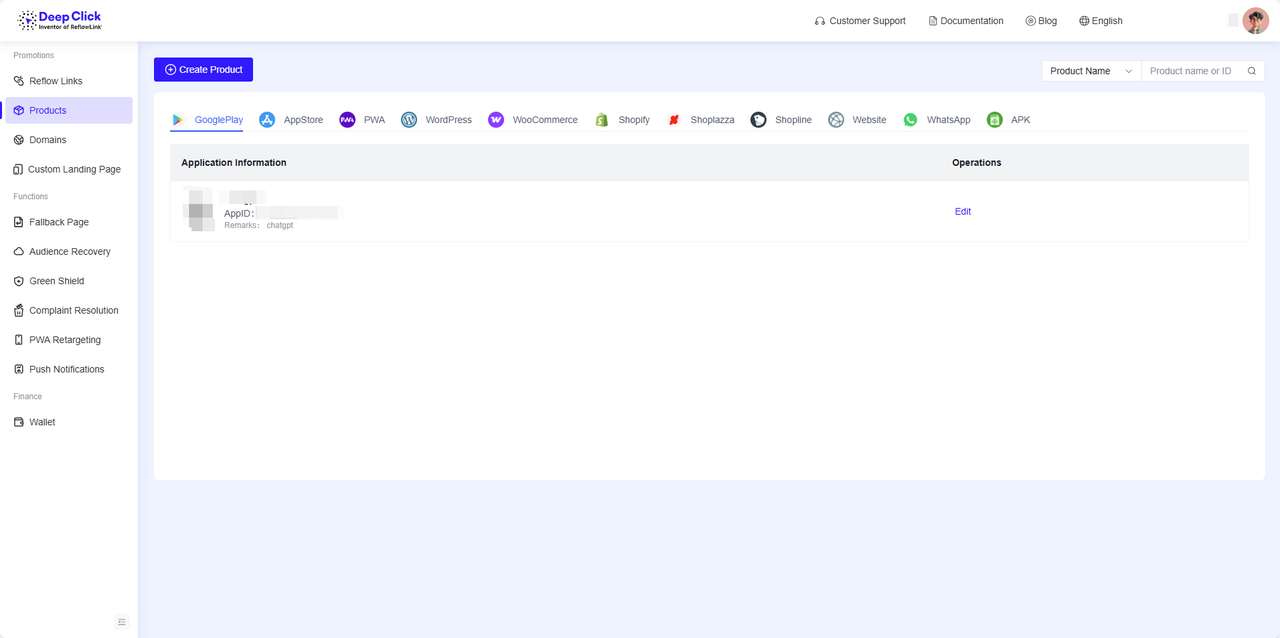
Step 1: Go to your DeepClick product page and click Create New Product
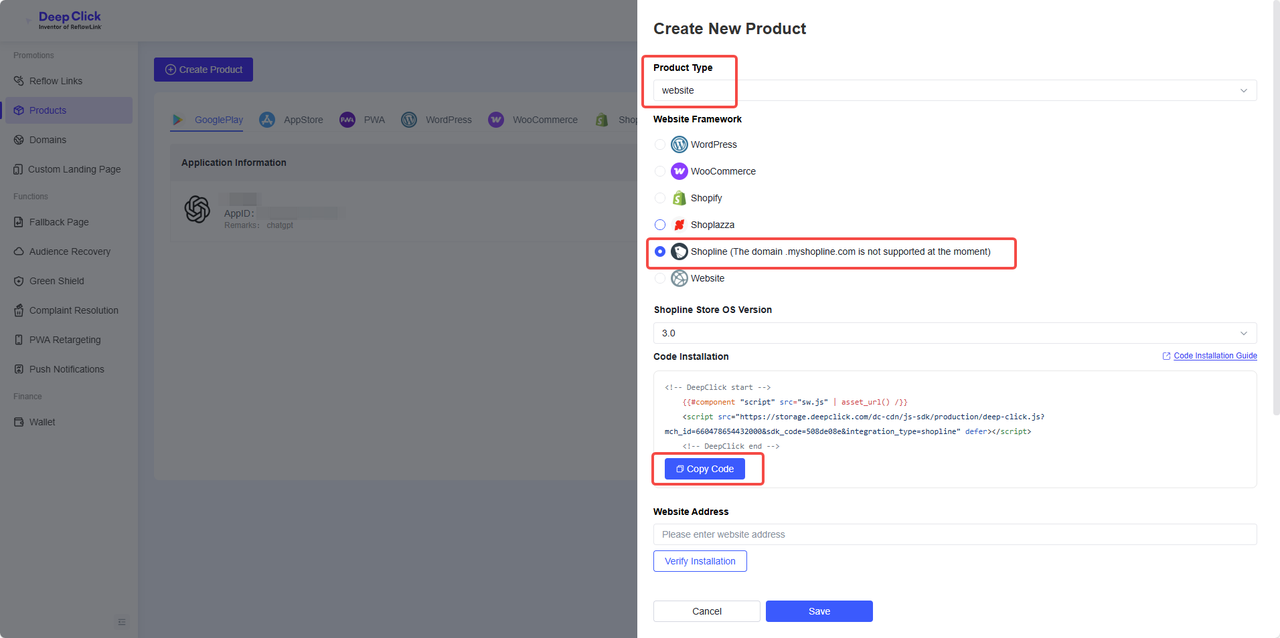
Step 2: Click Copy Code to copy the tracking code.
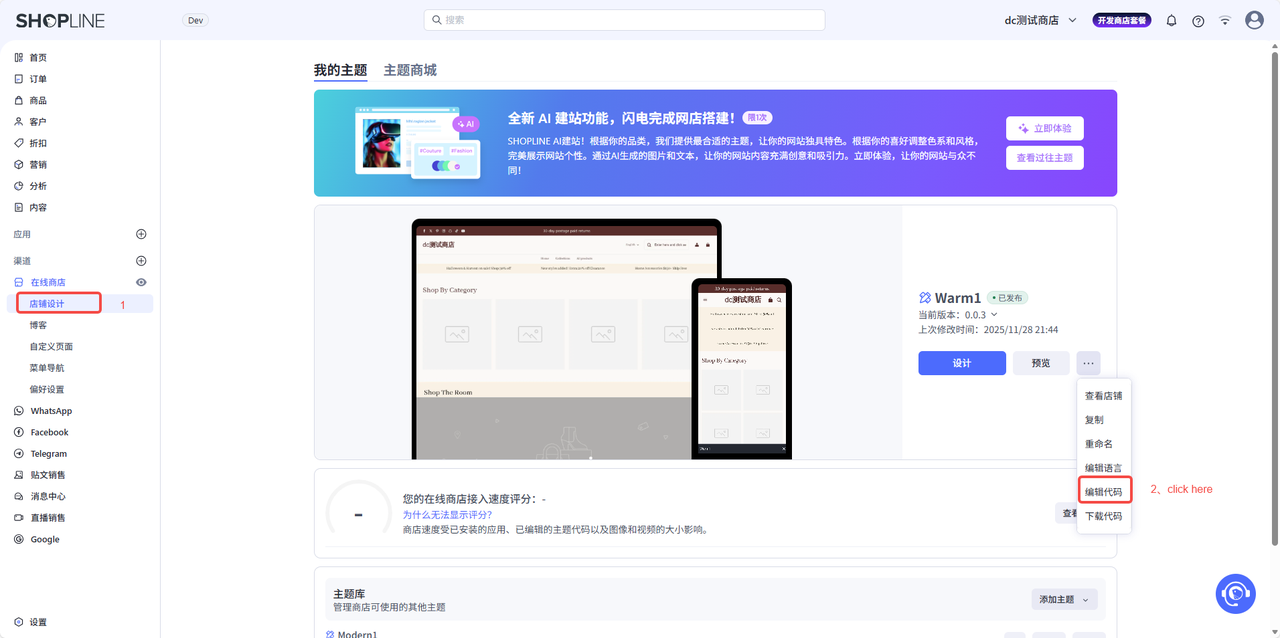
Step 3: Open the Shopline management panel and click on the current theme to select Edit Code
Step 4: Paste the tracking code before the </head> tag.
Some themes use variations of the <head></head> tag, such as {/head}, [/header], or other similar variations, all of which work in the same way.
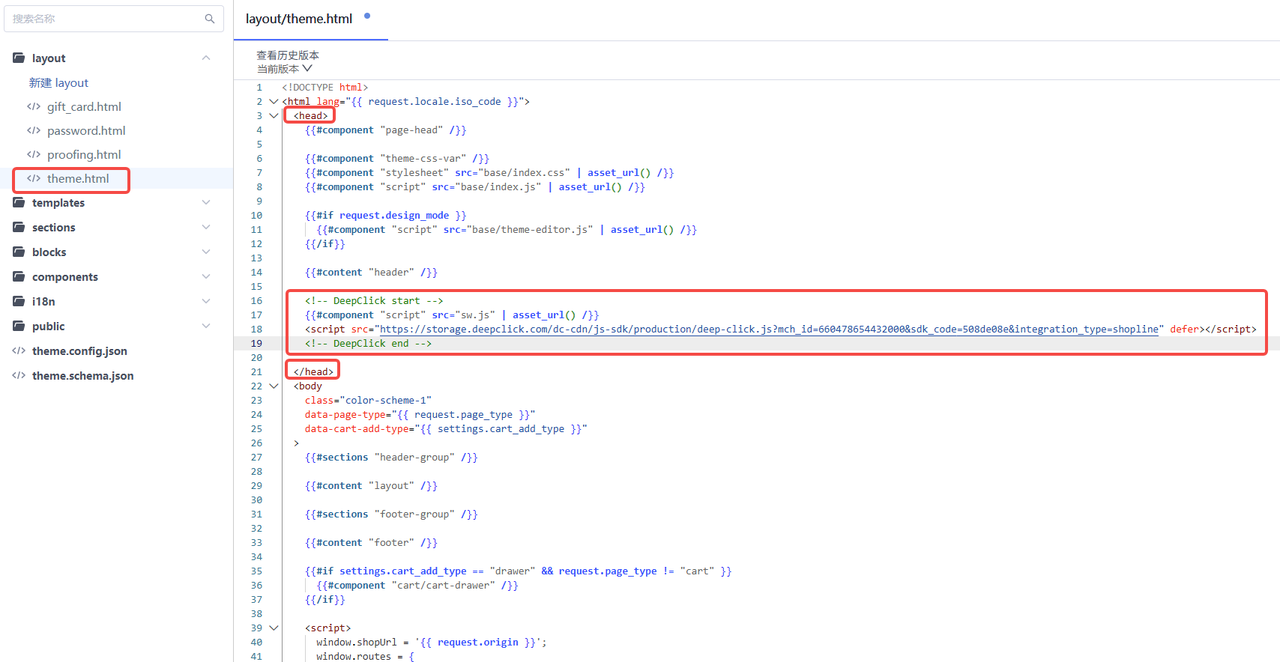
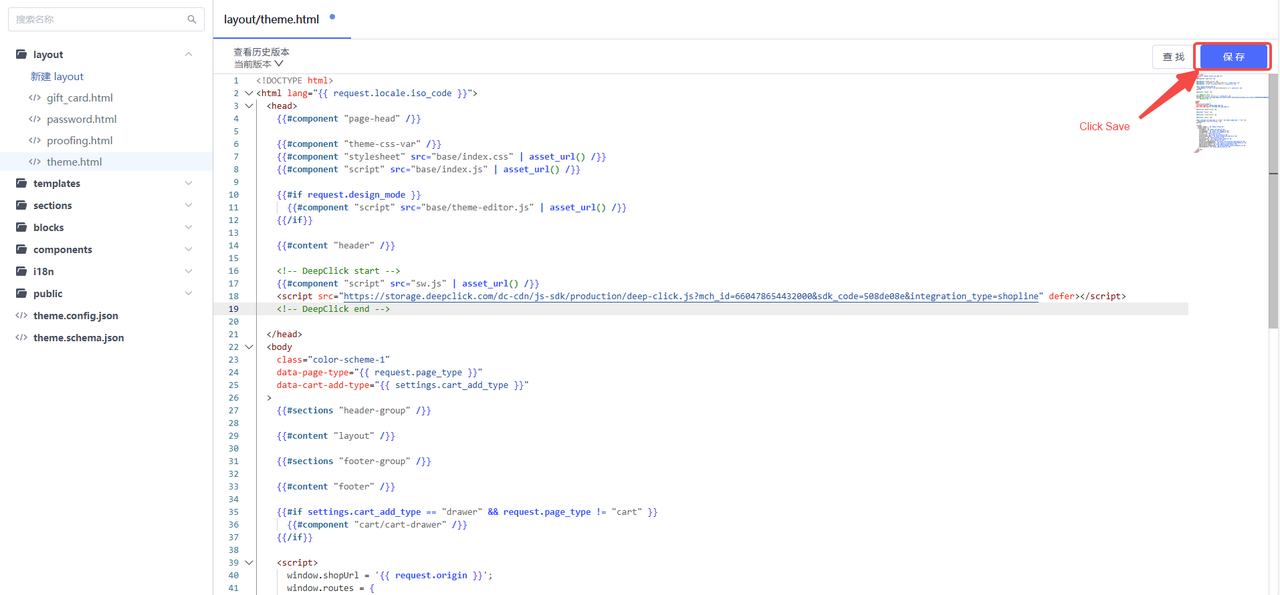
Step 5: Click Save